
Try Desktopr with the Companion
Download
The Desktopr Companion is the easiest way to try Desktopr and all of its desktop features before building your own app.
You can load your web app inside a real Desktopr-powered desktop environment, or use the built-in playground to test the Bridge API directly. It is itself a Desktopr app: its source lives in apps/companion and it is built by the same workflow as any other Desktopr app.
Download Companion →
Windows users can also install it from the Microsoft Store.
First launch
- macOS: the app is signed and notarized. Open the
.dmgand drag Desktopr Companion to Applications. - Windows: the Store version installs without warnings. The
-setup.exeinstaller is not code signed, so SmartScreen may show "Windows protected your PC": select More info, then Run anyway. - Linux: make the AppImage executable (
chmod +x), or install the.deb/.rpm.
Each release includes SHA256SUMS-<platform>.txt so you can verify what you downloaded.
What You Can Do
Companion lets you try Desktopr features without building anything first:
- try every Desktopr desktop feature
- test as many times as you want
- iterate freely on your app before setting up your own build
- see exactly how your app behaves as a native desktop app before you commit
- or directly test the Desktopr features from the playground with our code snippets or custom code
This makes Companion the best way to get a real feel for Desktopr before producing anything.
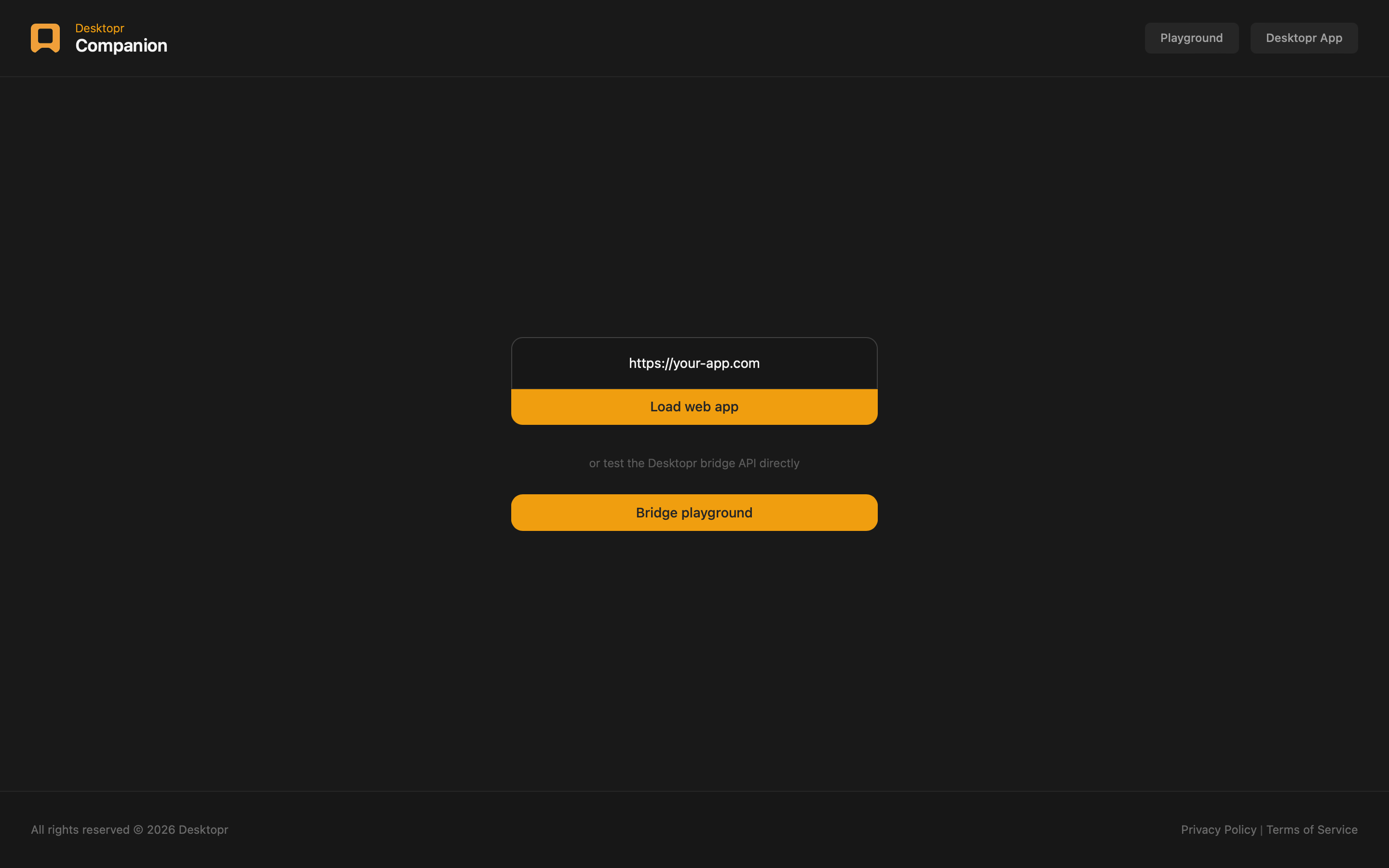
Preview
IMPORTANT
You have to integrate the Desktopr Bridge API in your app in order to test Desktopr features.
If you want to test right away, without having load your app and integrate the bridge API in it, use the companion built-in Brdige Playground.
Test with your app
How It Works
Enter your web app URL and load it inside Companion. Your app then runs in a genuine Desktopr desktop environment, giving you a faithful preview of the final result.
Because the companion exists to exercise every feature, the app you load runs in the main window with the full bridge and all its permissions. Only load web apps you trust.
Typical Workflow
A common workflow looks like this:
- Download and open Desktopr Companion.
- Enter your web app URL and load it.
- Explore Desktopr's desktop features with your app.
- Repeat as many times as you like.
- Set up your own build once you are satisfied with the result.
Test with the Playground
How It Works
Companion also includes a built-in Playground, a hands-on space where you can try Desktopr's desktop features one by one and see the result instantly, without having to load your app and integrate the bridge API in it.
It is perfect when you want to:
- quickly try desktop features in isolation
- check that something is available and working
- experiment before wiring anything into your app
- get immediate feedback while you explore
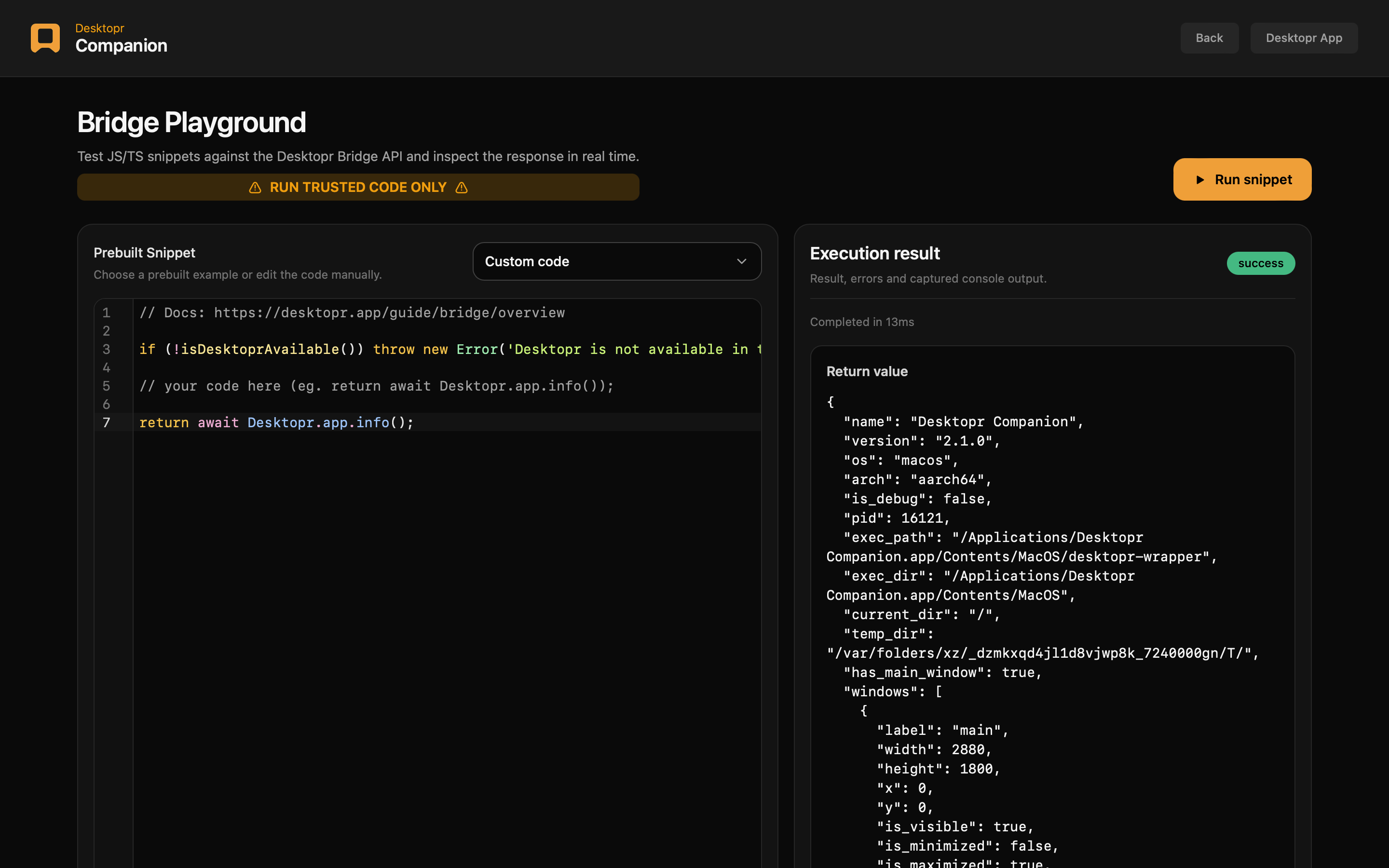
You can pick one of the ready-made snippets to get started right away, or write your own. For example:
if (!isDesktoprAvailable()) {
  throw new Error('Desktopr is not available in this environment.');
}

return await Desktopr.app.info();
The screen is split into two simple areas: an editor where you write or pick a snippet, and a result panel where you immediately see what it returned, along with any errors or console output.
Playground preview
WARNING: ONLY RUN CODE YOU TRUST
Notes
WARNING
Testing your app in a normal browser is not the same as testing it inside Desktopr Companion, desktop features are only accessible in from a Desktopr generated app. Always check how your app behaves in Companion before shipping a build.
IMPORTANT
You have to integrate the Desktopr Bridge API in your app in order to test Desktopr features.
If you want to test right away, without having load your app and integrate the bridge API in it, use the companion built-in Brdige Playground.
Download Companion →